How Your After Hours Receptionist Works
Your receptionist answers forwarded calls as your business, collects the details you need and sends you the result. Try a conversation in the browser demo, then use the onboarding chat to set your own call rules.
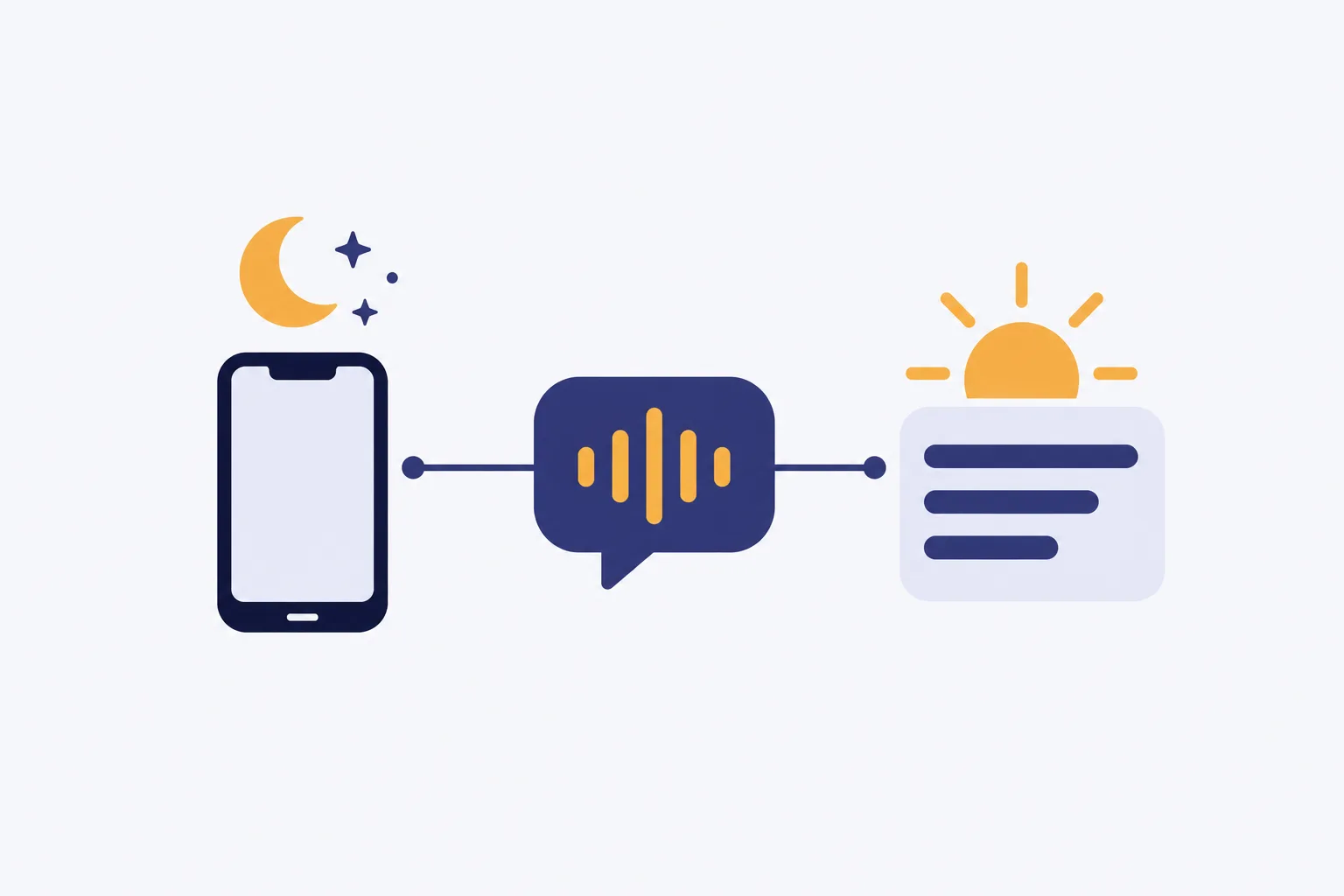
Step by step
- Choose your forwardingKeep your business number and prepare all-call, no-answer, busy or after-hours forwarding with the guide we provide.
- Hear your business greetingYour receptionist identifies itself as a virtual assistant, announces recording and asks your intake questions.
- Receive the call detailsEmail and app push alerts bring summaries, while appointments can be booked into Google Calendar.
- Test, then go liveCall your assigned local number, review the result and turn on your chosen forwarding.
Choose Which Calls Forward to Your Receptionist
You can forward all calls, unanswered calls, busy calls or only calls outside your hours. Keep the business number your callers already use and choose the coverage you need.
- Your existing numberCallers continue dialing the business number they already have.
- Your coverage choiceSend calls throughout the day or only when needed.
- Forwarding guidanceFollow the steps provided for your carrier or phone system.
Read more
Forwarding sends calls from your existing business number to the local number we provide in your area code. During setup, decide whether your team should answer first or whether calls should go straight to your receptionist.
A shop might choose no-answer forwarding during lunch and after-hours forwarding when it closes. Another business might forward its full call traffic. The available forwarding controls depend on your carrier or phone system, so use the supplied guide and confirm the route with a test call before making it live.
Hear What Your Receptionist Says and Asks
Your receptionist gives the virtual-assistant and recording notices, then handles the call using your business information. It asks intake questions, identifies urgency and follows the instructions you supplied.
- Clear introductionThe greeting identifies the virtual assistant and announces call recording.
- Useful questionsIntake covers your services, service area and the caller's needs.
- Urgency rulesYour instructions determine which calls need your on-call person's attention.
Read more
The onboarding chat asks about your services, hours, service area, price policy and urgent-call contacts. Your website supplies additional business information. Together, these give your receptionist the details it uses when someone asks whether you serve their address or offer a particular service.
For a routine inquiry, it can take a message or book an appointment into Google Calendar. For an urgent call, it follows your escalation order. It cannot supply business details you have not provided; use callback instructions for questions your team needs to answer. Hear the intake yourself in a browser conversation.
Get Call Summaries, Recordings and Booking Details
You receive an email and app push notification for each call, with a summary, urgency tag, transcript and recording. The dashboard holds your call records, usage and settings.
- Call alertsEmail and app push notifications show what needs your attention.
- Reviewable recordsRead the transcript or listen to the recording for context.
- Daily digestAn email brings the day's calls together for your review.
Read more
A message gives you the caller's request and the intake details gathered during the conversation. Use the urgency tag to decide what to review first, then open the transcript or recording when you need the caller's exact words.
Appointments can go into Google Calendar, or your receptionist can collect the details for a callback. If your team works in another business system, enter the summary there yourself. Direct software connections are not live at launch. The daily digest offers another opportunity to check messages and decide which callers still need a response.
Test Your Call Rules and Change Them Later
You make a test call before forwarding goes live, then review the greeting, intake and result. Later, tell the AI what to change in your dashboard settings.
- Practice the greetingHear the business information and required notices before launch.
- Check urgent routingTest the contact order you chose for urgent callers.
- Update in plain wordsTell the AI about revised hours, services or instructions.
Read more
Test a situation your business expects after closing, such as a service request outside your usual area. Check whether the questions gather enough information for your callback and whether the response follows your price policy. For urgent routing, confirm the on-call contact details and try the transfer path.
Read the summary after the test and adjust your instructions where needed. The AI can make mistakes, so reviewing call results remains part of running the service. When your hours or on-call arrangements change, update the settings in plain words. Request a trial for your call setup; we email your sign-in link when the trial is ready.
Common questions
Can I keep my business phone number?
Yes. Your existing number stays the number callers dial, and forwarding sends the calls you choose to your receptionist's local number. We provide a guide for your carrier or phone system. Make a test call to confirm the route before using it for customer calls.
Will callers know they are speaking with AI?
The greeting identifies your receptionist as a virtual assistant and tells callers the call is recorded. Those notices stay on. After the introduction, the receptionist answers as your business using the services, hours, policies and intake instructions you supplied during setup.
How does an urgent call reach me?
You choose who receives urgent calls and the order in which they are contacted. With a warm transfer, the on-call person hears a short summary and presses 1 to accept. Your rules can instead call for a page to the designated person.
Where do I find my messages after a call?
Check your email or app push notification for the call alert, including its summary, urgency tag, transcript and recording. You can also review calls in the dashboard. A daily digest email brings the day's activity together so you can check your follow-up list.
What should I do if the receptionist gives an incorrect answer?
Review the transcript or recording, then correct the relevant business information or instructions through the dashboard by telling the AI in plain words. Check the revised behavior with another call. Keep a backup way for callers or your on-call contact to reach your business.
Try a Call Before Setting Your Rules
Use the browser demo without signing up. When you are ready, request a free trial to teach your receptionist how your business handles calls.